It took me a while to get accustomed to work with custom settings on the Nikon D200. I actually, didn't touch this option for almost year. What a mistake! Using custom settings, I can easily change a whole lot of setting for colour balance, image quality, autofocus etc by the changing to a different preset. If I want to do candid shots at a family gathering, I select my point and shoot setting with a bit more intense colour, using the built in flash for TTL exposure... If I want to take a serious portrait of a family member, I change to the custom setting for portraits with raw compression and activated CLS for more interested lighting with my SB 800s. The nice thing is that you can define up to 4 different custom setting setups.
To begin with, there are two custom setting menus, the first you find in the Shooting Menu, where you define on how to optimize the image, image quality, compression, ISO settings. In the Custom Settings Menu, you can set option for autofocus, metering, timeers, shooting display etc. Which means, you have to work with two different setups and need to change both, which still is much faster than changing the settings manually.
I found a nice version at Nikonians' webpage. They seem to have some server problems at the moment. Check them out later today or tomorrow. I hope they will be up and running again by then. Search their webpage for "Custom Settings v1-5". It is an Excel Spreadsheet, which offers you a great starting point.
I downloaded the spreadsheet a couple of weeks ago. I copied each and every setting in the two custom settings menus. Then, the fun started and I explored what works for me and what doesn't. Some settings are simply great and work fantastic for me and other simply are not, what I am after. The real nice thing about custom settings, is how is easy they are to setup and change.
You simply select the custom settings bank, you want to work with. Go into each and every menu and submenu and enter the changes you need. Not happy? Just change them again.
Be aware the next time you take pictures, which custom setting bank, you chose. You don't want to take your high profile portrait with your point and shoot settings! It takes a bit to get used to, but for me it is second nature. After each photo session, I set my camera back to my favourite custom setting bank.
Have a look at it and play around. It is a feature worth checking out further.
Showing posts with label Preset. Show all posts
Showing posts with label Preset. Show all posts
29 October 2007


28 May 2007
How to use the White Balance Function for the Nikon D200
All modern digital SLR cameras come with a white balance automatic. The Nikon D200 is not exception. Using the automatic white balance works in most cases and is sort of accurate. If you want to hit the white balance right to the point, you need to work with the preset function of the D200.
In the slideshow you can see the difference settings and what effect they have on the picture. I worked with two different conditions. 1) Fluorescent light only 2) Fluoroscent light plus flashlight. The captions of the images display first the Camera setting followed by the light condition.
Using the preset gives you very good representation of the original light conditions.
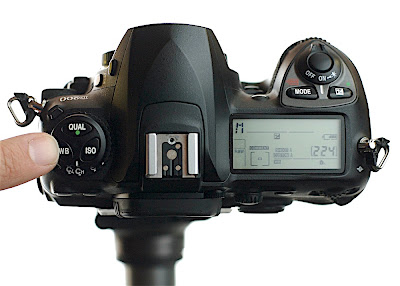
So, how do you change the different white balance settings? The engineers of the Nikon D200 made our lifes very easy with their design. On top of the camera on the left hand side, you find a button with three keys on: Qual (to select image quality), ISO (to set ISO manually) and WB (to select the white balance option). My finger is pointing to it in the first image. Holding the WB button and simultanously turning the backwheel, allows you to select a white balance setting. You see your current setting on the top display on the bottom line.

When you want to create your own individual preset, follow the these steps.
1) Get yourself a white sheet of paper.
2) Select the white balance option PRE
3) Hold the WB button on the camera top left for a few seconds until you can see PRE flashing in the top display.
4) Point your camera at the white sheet of paper. Make sure that you cover the whole image field. Don't worry about focus, but make sure the exposure is correct.
5) Press the shutter button.
6) If the camera is happy with the result, you will see the GOOD flashing, if that is not the case, do it again.
That is not too difficult, but there is one more thing. You can save your own presets and use them again in the future, without measuring the whitebalance again.
After step 2), you hold WB down for a short moment and turn the front wheel at the same time. On the top display next to your exposure mode, you see something like d-0 to d-4. These are your individual memory slots. Select one and proceed to step 3). The setting is saved for the memory slot, you selected.
I hope that helped and makes things a bit easier for you in the future.
In the slideshow you can see the difference settings and what effect they have on the picture. I worked with two different conditions. 1) Fluorescent light only 2) Fluoroscent light plus flashlight. The captions of the images display first the Camera setting followed by the light condition.
Using the preset gives you very good representation of the original light conditions.
So, how do you change the different white balance settings? The engineers of the Nikon D200 made our lifes very easy with their design. On top of the camera on the left hand side, you find a button with three keys on: Qual (to select image quality), ISO (to set ISO manually) and WB (to select the white balance option). My finger is pointing to it in the first image. Holding the WB button and simultanously turning the backwheel, allows you to select a white balance setting. You see your current setting on the top display on the bottom line.

When you want to create your own individual preset, follow the these steps.
1) Get yourself a white sheet of paper.
2) Select the white balance option PRE
3) Hold the WB button on the camera top left for a few seconds until you can see PRE flashing in the top display.
4) Point your camera at the white sheet of paper. Make sure that you cover the whole image field. Don't worry about focus, but make sure the exposure is correct.
5) Press the shutter button.
6) If the camera is happy with the result, you will see the GOOD flashing, if that is not the case, do it again.
That is not too difficult, but there is one more thing. You can save your own presets and use them again in the future, without measuring the whitebalance again.
After step 2), you hold WB down for a short moment and turn the front wheel at the same time. On the top display next to your exposure mode, you see something like d-0 to d-4. These are your individual memory slots. Select one and proceed to step 3). The setting is saved for the memory slot, you selected.
I hope that helped and makes things a bit easier for you in the future.
Subscribe to:
Posts (Atom)